Thread Branches
Fork any message into a focused sub-thread — or let Hamster create one automatically when a response needs more space.
Overview
A thread branch is a separate conversation that lives alongside the main thread but is focused on a single topic. You can open a branch from any existing message when you want to explore an idea in depth without cluttering the main conversation. The branch has its own message history, its own AI context, and — when you're done — you can share an AI-generated summary back into the main thread so everyone sees what was concluded.
Hamster can also create branches automatically. When a response involves a detailed multi-step flow — deep research, a long write-up, or a complex plan elaboration — Hamster moves it to a dedicated thread and leaves a link card in the main conversation. This keeps the main thread scannable while giving the detailed work its own space.
Thread branches are useful in team settings, where one person may want to dig into a specific topic or run a focused research session while the main conversation continues.
How It Works
-
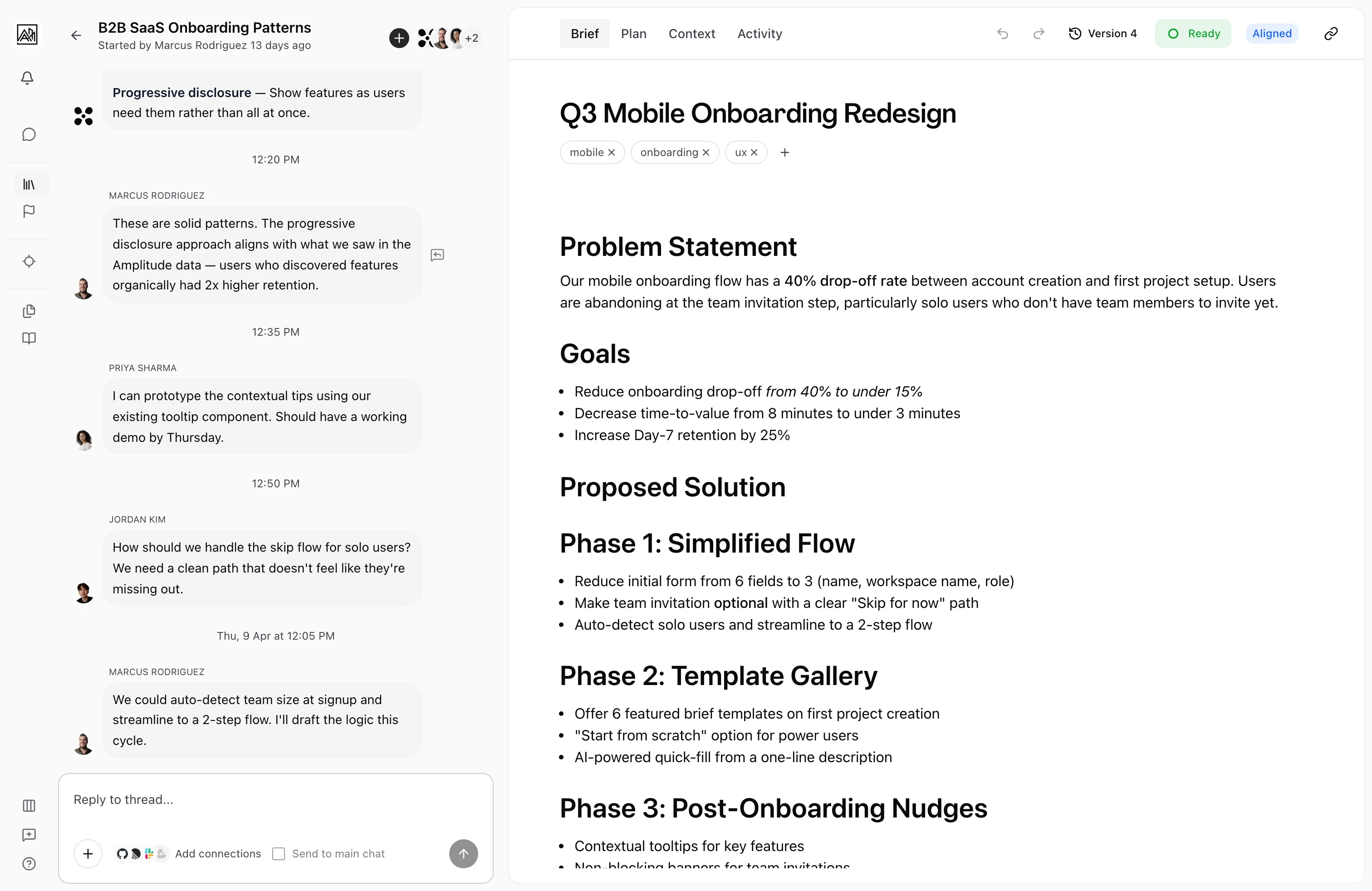
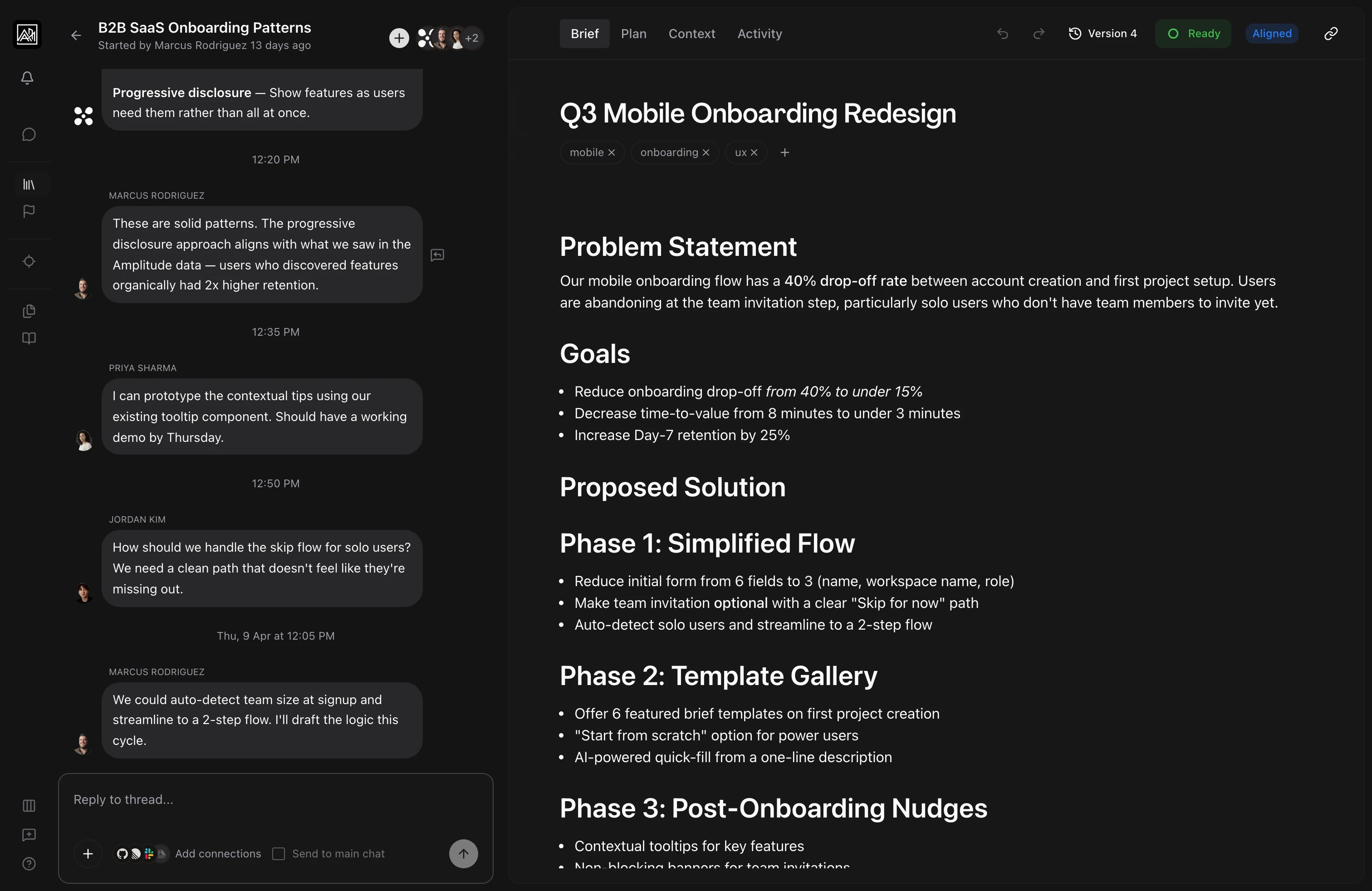
Open a branch — Hover over any AI or user message in the thread and click the reply icon. This creates a new child thread anchored to that message and slides the branch view in from the right, overlaying the main conversation.
-
Converse in the branch — The branch behaves exactly like a normal thread. You can type messages, receive AI responses, attach files, and continue the conversation for as long as needed. The branch header shows the title, who started it, and when.
-
Return to the main thread — Click the back arrow in the branch header to close the branch and return to the main conversation. Your branch is saved and can be reopened later from the same message.
-
Share a summary — When a branch conversation reaches a natural conclusion, the AI generates a summary automatically. A prompt appears at the bottom of the branch asking whether to share this summary back to the main thread. Click "Share summary" to post a compact summary card in the main conversation. You can dismiss this prompt if you prefer not to share.
-
View the summary in the main thread — The shared summary appears as a message card in the main thread, attributed to the person who shared it and linked to the branch. Any participant in the main thread can click "View full summary in thread" to reopen the branch and read the full conversation.
Key Capabilities
-
Anchored branches: Each branch is linked to the specific message that spawned it. The parent message displays a visual indicator showing a branch exists. Click it to reopen the branch.
-
Auto-threading: Hamster can create a branch automatically when its response is detailed enough to warrant its own space. A link card appears in the main thread so you can follow the thread without losing your place. Simple answers stay inline.
-
AI-generated summaries: When a branch has enough content, Hamster produces a written summary automatically. Summaries are versioned — if you continue the branch conversation after sharing a summary, a new summary is generated and you're prompted to share it again.
-
Link cards: When a branch is created (by you or by Hamster), a compact card appears in the parent thread showing the branch topic. Anyone can click through to the full sub-thread. This keeps the main conversation scannable.
-
Summary sharing: The share prompt only appears when there is new summary content that hasn't been shared. If you dismiss it, it reappears next time a newer summary is ready.
-
Branch participants: Branches have their own participant list. Invite teammates directly into a branch from the header, giving them access to that sub-conversation without adding them to the entire main thread.
-
Send to parent: When you're inside a branch, the input shows an option to also send your message to the parent thread. This lets you share a finding with the main conversation without manually copying it.
-
Deep linking: Branches have their own URL. Share a link to a branch and the recipient lands directly on that sub-thread.
Tips
- Use branches when you want to run a focused research session, explore an alternative approach, or work through a detailed problem without fragmenting the main conversation history.
- Share the summary to the main thread before closing a branch. This keeps all participants aligned without requiring them to read every message in the branch.
- If a teammate has already shared a summary from a branch, you can still open the branch to read the full conversation. The summary is a shortcut, not a replacement.
Related
- Thread Messaging — Sending messages and replies in the main thread
- AI Responses — How the AI works within branches
- Activity Timeline — Tracking conversation and branch activity on a brief