Real-Time Editing
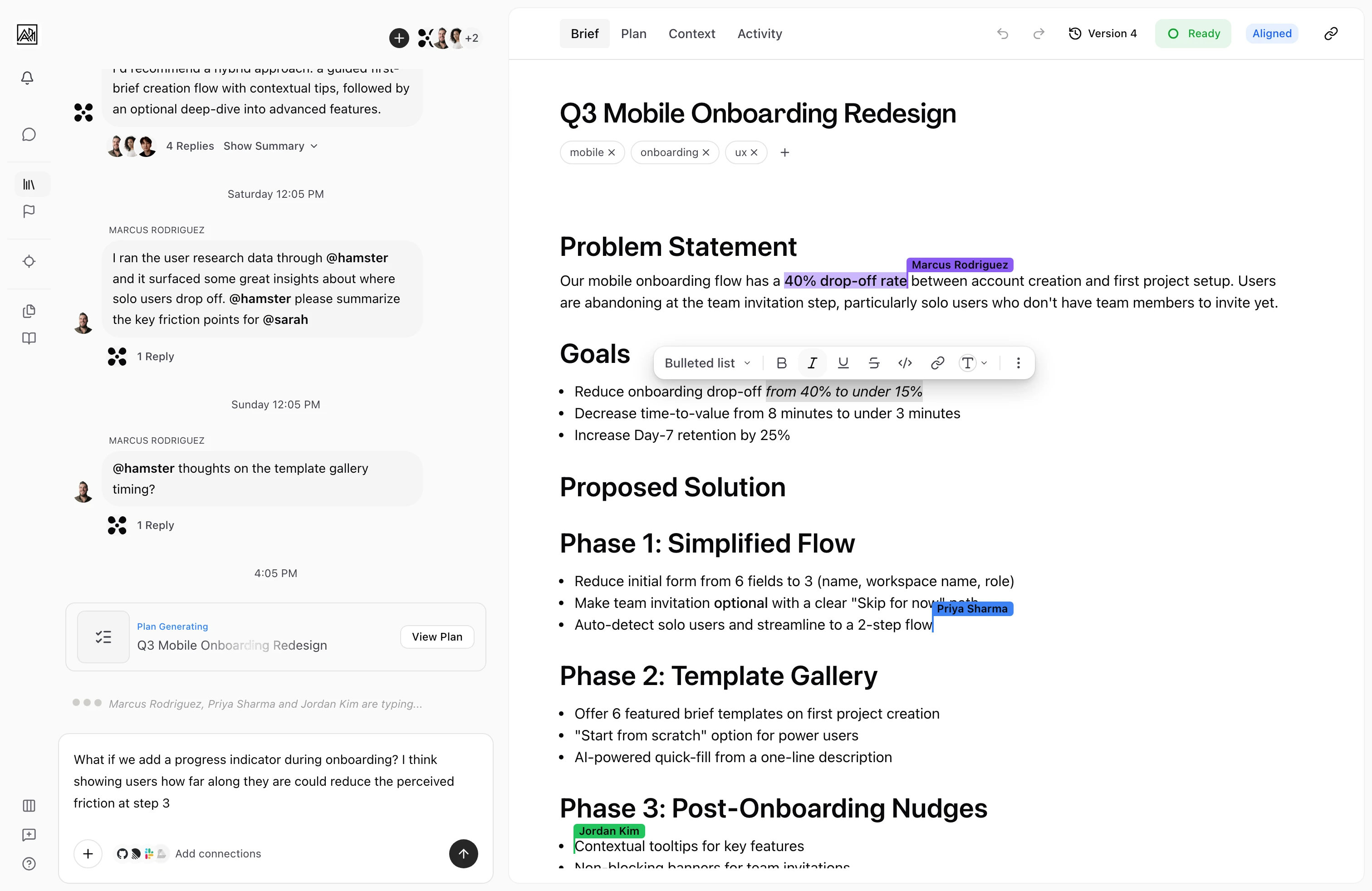
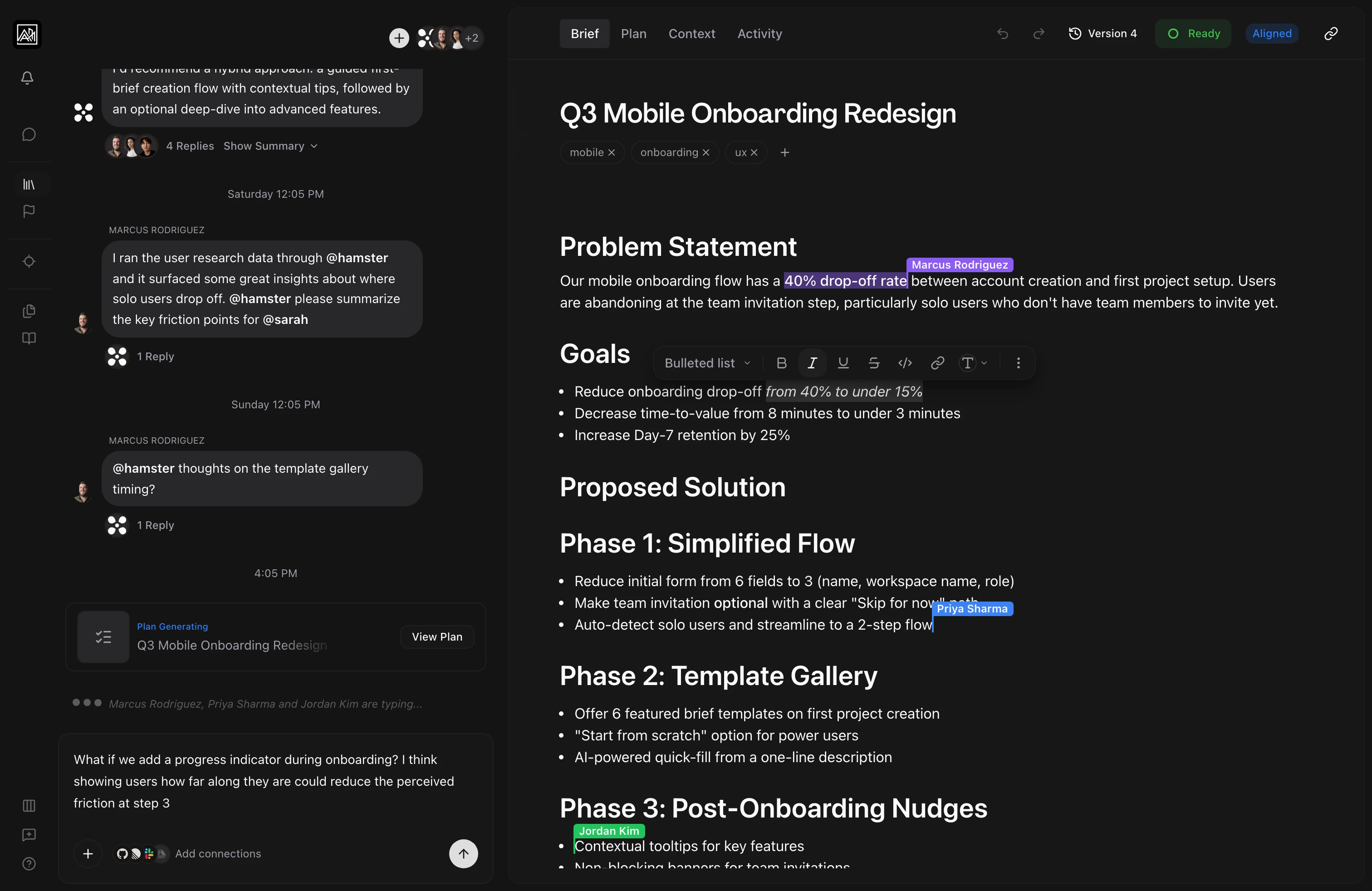
Multiple team members can edit the same Brief or document at the same time, with each person's changes and cursor position visible to everyone else instantly.
Overview
Real-time editing lets your whole team work inside a document simultaneously without stepping on each other's work. You see who else is present, where their cursor is, and what they're typing — all as it happens. Changes merge automatically, so there is no need to take turns editing or reconcile separate copies.
This is most useful during Brief reviews, kickoff sessions, and any situation where several people need to shape content together rather than asynchronously.
How It Works
-
Open any Brief or document — When you navigate to a Brief, skill, or Method, the editor connects automatically to a shared editing session for that document.
-
Editing begins — As soon as the editor shows a "connected" status, your changes broadcast to every other person who has the document open. Their changes appear in your editor with no page refresh needed.
-
See who's present — Each active editor appears as a colored cursor label showing their name. Labels disappear automatically when someone closes the document or goes idle for more than 30 seconds.
-
Changes save automatically — Edits save to the database continuously as you type. If your Connection drops, the editor reconnects on its own and syncs any changes you made offline when it comes back.
Key Capabilities
-
Concurrent editing: Any number of team members can edit the same document at once. Edits from each person merge without conflict.
-
Cursor presence: Colored cursor labels show where each active editor is working in the document. Each person gets a consistent color tied to their name.
-
Automatic reconnection: If your Connection drops, the editor retries with increasing wait times (starting at 300 milliseconds, up to 10 seconds). Your work is preserved during disconnects.
-
Local backup: In the rare case that a save to the database fails, your changes are held locally in the browser until connectivity is restored.
-
AI agent participation: The Hamster AI assistant can edit documents in the same session. Its changes appear alongside human edits.
Tips
- The editor shows a status indicator ("connecting", "connected", "disconnected") in the header. Wait for "connected" before making important edits in an unstable network environment.
- Cursor labels for other editors fade after 30 seconds of no activity from that user. This keeps the interface clean during long sessions where some participants step away.
- If you paste a very large block of content (images, large text dumps), the save may take a moment longer than a normal keystroke. The editor handles this gracefully, but you may notice a Brief delay.
- Real-time editing works inside Briefs, skills, and methods. It does not apply to Task fields, comments, or settings.