Roles and Permissions
Give every teammate the right level of access so more people can collaborate safely without slowing Delivery — and trust that one team's data stays inside that team.
Overview
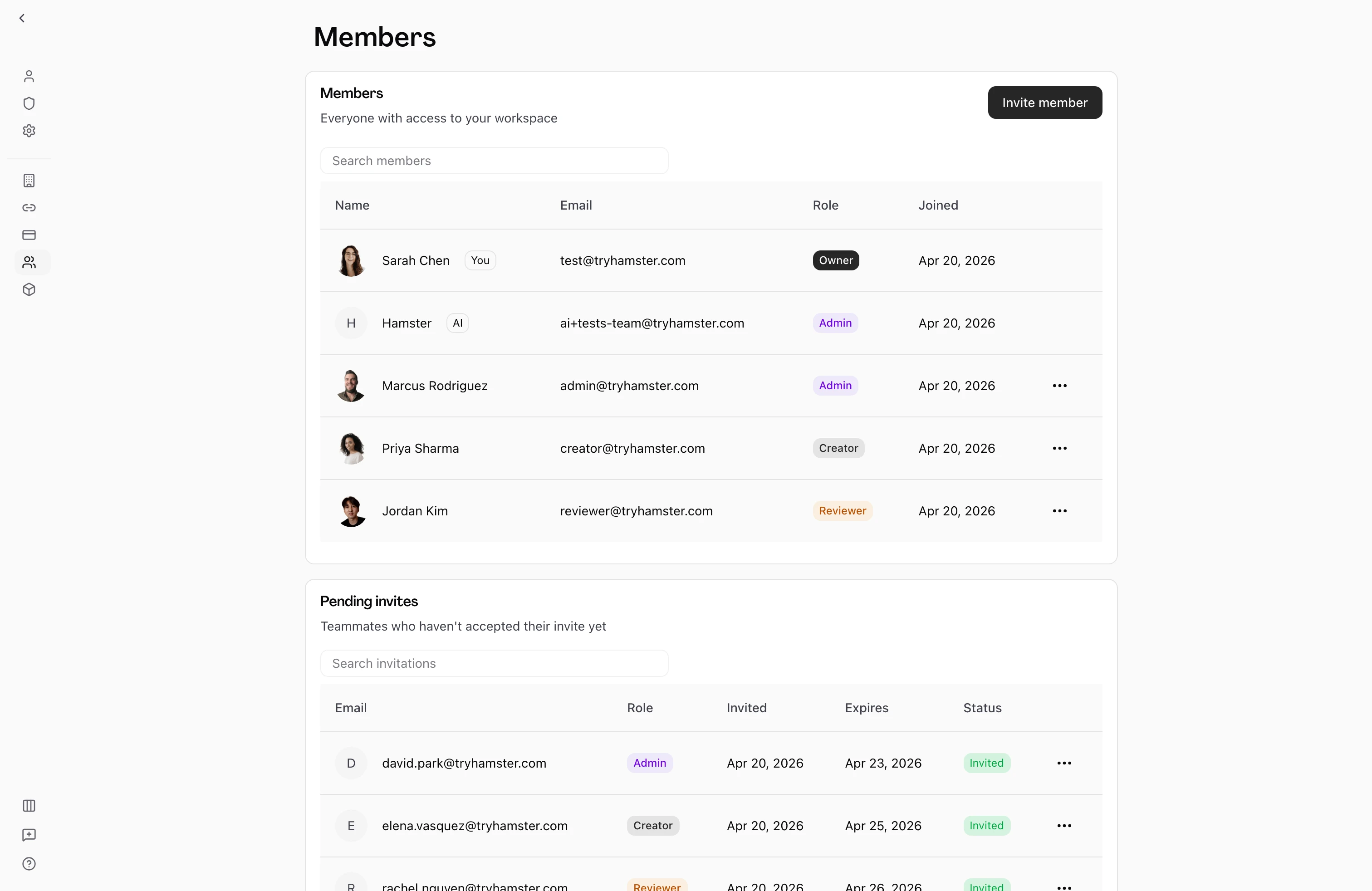
Every teammate in Hamster has a role that controls what they can do. Hamster Studio uses four roles: Reviewer, Creator, Admin, and Owner.
This gives teams a practical middle ground: you can let more people contribute and review work without giving full admin-level permissions to everyone. Reviewer seats are free, so stakeholders, leadership, clients, and partners can sit in the same shared context as the people shipping work — without consuming a paid seat.
There is also a special designation called primary owner, which applies to the person who originally created the team. The primary owner has extra protections that cannot be overridden by other roles.

The Four Roles
Reviewer
Reviewers can see everything in the workspace — Briefs, Blueprints, skills, Methods, Plans, Tasks, and conversations — without being able to edit any of it. They can comment on Briefs, participate in conversation threads, and vote on alignment, so they stay involved without changing the work itself.
Reviewer seats are free, making it easy to include stakeholders, leadership, clients, or partners in the same shared context without risking accidental changes.
Creator
Creators can build and edit all workspace content — Briefs, Blueprints, skills, Methods, Plans, and tasks. Creators can also invite new members to the team, so the people closest to the work can pull in collaborators directly, without an admin in the loop.
Creators do not manage billing, team-level settings, or assign roles. This is the right role for teammates who should ship work and grow the team but do not run team operations.
Admin
Admins can manage day-to-day team operations without full primary ownership controls. An admin can:
- Invite members and manage invitations
- Update team member roles (within allowed hierarchy)
- Remove members (except protected roles above their level)
- Manage workspace settings and integrations
- Manage billing and subscriptions
Admins cannot delete the team or take over primary ownership.
Owner
Owners have full access to the team workspace and its settings. An owner can:
- Invite new members and set their roles
- Update or remove pending invitations
- Change an existing member's role
- Remove members from the team
- Manage billing and subscription settings
- Update the team name and logo (primary owner only)
- Transfer ownership to another member
- Delete the team (primary owner only)
Owners cannot change the role or remove the primary owner.
Role Hierarchy
The hierarchy determines which actions are permitted between roles. The list below is ordered from most limited access to highest access:
| Role | Access Level | Summary |
|---|---|---|
| Reviewer | Read-only | View everything, comment on Briefs, vote on alignment |
| Creator | Standard | All of Reviewer, plus create and edit workspace content, plus invite new members |
| Admin | Elevated | All of Creator, plus manage members, roles, billing, and team settings |
| Owner | Full | All of Admin, plus ownership transfer and team deletion |
When someone performs a role-sensitive action (such as changing a teammate's role), they can only assign roles at or below their allowed level.
Permission Matrix
| Capability | Reviewer | Creator | Admin | Owner |
|---|---|---|---|---|
| View all workspace content and activity | * | * | * | * |
| Comment on Briefs, threads, and alignment votes | * | * | * | * |
| Create and edit workspace content (Briefs, Blueprints, skills, Methods, Plans, Tasks) | * | * | * | |
| Organize work into Initiatives | * | * | * | |
| Set up integrations (GitHub, Linear, Slack, etc.) | * | * | * | |
| Manage MCP connections and OAuth clients | * | * | * | |
| Invite new members | * | * | * | |
| Remove members | * | * | ||
| Assign and update roles | * | * | ||
| Manage team settings | * | * | ||
| Manage billing and subscriptions | * | * | ||
| Transfer ownership | * | |||
| Delete the team | * |
Connection Management
Setting up integrations (GitHub, Linear, Slack, Figma, etc.) requires the appropriate permission from your role. Creators, Admins, and Owners can connect tools. Reviewers cannot.
MCP (Model Context Protocol) integrations are managed through the connections settings. Creators, Admins, and Owners with connections.manage can register public-PKCE clients, view their public client IDs, manage exact redirect URIs, and revoke unused registrations. Reviewers cannot see or modify MCP settings.
MCP registrations do not have client secrets. Revoking a registration blocks new authorizations but does not retroactively invalidate tokens that were already issued.
Seat Types
Owner, Admin, and Creator roles each use one paid seat. Reviewer seats are free and unlimited — add as many stakeholders, clients, or partners as you need without affecting your plan.
The team's AI assistant is a member too, but its seat is excluded from billable counts. You will not be charged for the assistant.
Inline Role Updates
Changing a teammate's role on the Members page is a single click. Open the role badge on any row and pick the new role — the change applies optimistically and is confirmed in the background. There is no separate modal flow.
The inline editor falls back to a static badge for rows you cannot edit:
- Your own row.
- The primary owner.
- The team AI assistant.
- Any teammate whose role is at or above your own.
If you do not have permission to change a row, the badge stays read-only — there is no failed-action surprise.
Cross-Account Isolation
If you belong to multiple Hamster teams, each one is hard-isolated from the others:
- Data is account-scoped. Briefs, threads, documents, members, and integrations belong to a single account. Switching team accounts in the sidebar changes everything you see — there is no cross-account leakage.
- Permissions are checked at every layer. The same permission gate runs in the database, in the API, and in every server action. Even if the UI lets you click something, the request is rechecked on the server before anything changes.
- Sharing crosses team boundaries deliberately. A public Brief share link works for anyone, but the share page does not expose anything beyond what the link permits. Joining a thread invites you only to that thread — not to the rest of the workspace.
- Switching teams is consistent across devices. Your last-active team is remembered per browser, with secure cookies in production and dev-friendly behaviour locally.
This matters most for consultants, agencies, and contractors who join multiple workspaces. Your role in one team has no bearing on your role in another, and one team's content is never visible from another.
Sharing Briefs and Threads
Hamster has two sharing surfaces today, both built so the right people see the right context without anyone gaining access they should not have:
Public Brief Share Links
Any Brief can be shared via a public link. The shared page renders the Brief content and lets the recipient cast an alignment vote — useful for getting sign-off from stakeholders who are not yet team members. The share page reads from a dedicated path, so it never exposes anything beyond the Brief and the alignment-vote CTA.
Thread Share-Summary Banner
Child threads — replies and side conversations branching off a Brief or main chat — show a collapsible summary banner at the bottom. The banner gives a markdown summary of the thread plus a one-click Share to main chat action so participants can pull the conversation back into the room.
Connection Health and Permission Badges
Hamster surfaces external integration health alongside roles, so a permission gap on a connected tool does not waste a Delivery run. GitHub repos in particular are checked for the access the connected token actually has:
- All green — Hamster can read, push, and open PRs. No badge.
- No push — The connected token is read-only. A "No push" badge appears on the repo card, and the deliver button surfaces an amber warning with a "Configure in Settings" link.
- No PRs — The token can push but cannot open pull requests. A "No PRs" badge appears.
Hamster checks live against GitHub for these capabilities — fine-grained tokens often misreport themselves, so we use real write probes to be sure. Resyncing a Connection refreshes the cached state immediately.
Primary Owner
The primary owner is the member who created the team. This designation cannot be transferred through normal role management — it requires an explicit ownership transfer, which includes an additional verification step.
Key differences for the primary owner:
- Cannot be removed from the team by other owners
- Cannot have their role changed by other owners
- Is the only person who can delete the team
- Is the only person who can initiate an ownership transfer
Changing a Member's Role
To change a member's role:
- Go to the Members page in your team workspace.
- Find the member in the table.
- Click the role badge on their row and pick the new role from the options available based on your own role.
The change takes effect immediately. The affected member does not need to do anything.
For roles you cannot change (your own, the primary owner, the AI assistant, or anyone at or above your level), the badge is read-only — no menu opens.
Transferring Ownership
Transferring primary ownership moves full control of the team from you to another owner. This is a permanent action that requires verification:
- Go to the Members page.
- Open the actions menu for the member you want to make the primary owner.
- Select Transfer ownership.
- Complete the verification step — you will be sent a one-time code to confirm your identity.
- Confirm the transfer.
After the transfer, you remain in the team as an owner (not the primary owner). You can still manage the workspace, but you can no longer delete the team or perform other primary-owner-only actions.
Removing Members
Owners and admins can remove members whose role is at a lower hierarchy level than their own. To remove a member:
- Go to the Members page.
- Open the actions menu for the member.
- Select Remove member.
- Confirm the removal.
Removed members lose access to the workspace immediately. Their past contributions (Briefs, comments, and similar) remain in the workspace.
Leaving a Team
Any role except the primary owner can leave a team at any time. To leave:
- Go to the team settings or profile area.
- Find the Leave team option in the danger zone.
- Type
LEAVEto confirm.
The primary owner cannot leave the team. They must transfer ownership first.
Tips
- Use Reviewer generously. Stakeholders, clients, partners, and leadership all sit better in shared context than copy-pasted from Briefs — and the seat is free.
- Use Creator for teammates actively shipping work. Creators can invite new members, so they can grow the team without going through an admin.
- Keep the number of owners small. Use Admin for operational coverage without expanding top-level control.
- The role badge on the Members page is the fastest path — click it to change a role, no modal required.
- Role changes and removals take effect immediately across all active sessions.