Voice mode
Start a live conversation from the chat composer and keep working in Hamster while you speak.
Overview
Voice mode is the spoken form of Hamster Chat. When the composer is empty, its send control becomes a waveform button. Select it to start a live voice session, then speak naturally while Hamster answers in voice and works with the current workspace context.
The same voice session is visible across open chat windows. You can stop it from any composer that shows the active session.
How It Works
- Open a chat from the page you want Hamster to use as context, and leave the composer empty. The send control appears as a waveform.
- Select the waveform to start the voice session. A listening control appears in the composer. Allow microphone access in your browser when prompted.
- Speak your request. Hamster answers in voice and can act in the workspace, including navigating to the work you ask for.
- Continue the conversation in the same session, or stop it from an open chat composer.
Meetings
Anyone in the workspace can send Hamster to a Zoom, Google Meet, or Microsoft Teams call. Press ⌘K (Ctrl+K on Windows and Linux), type meeting, and choose Join Meeting. After you paste the meeting link and select Continue, Hamster joins the call as a participant and listens.
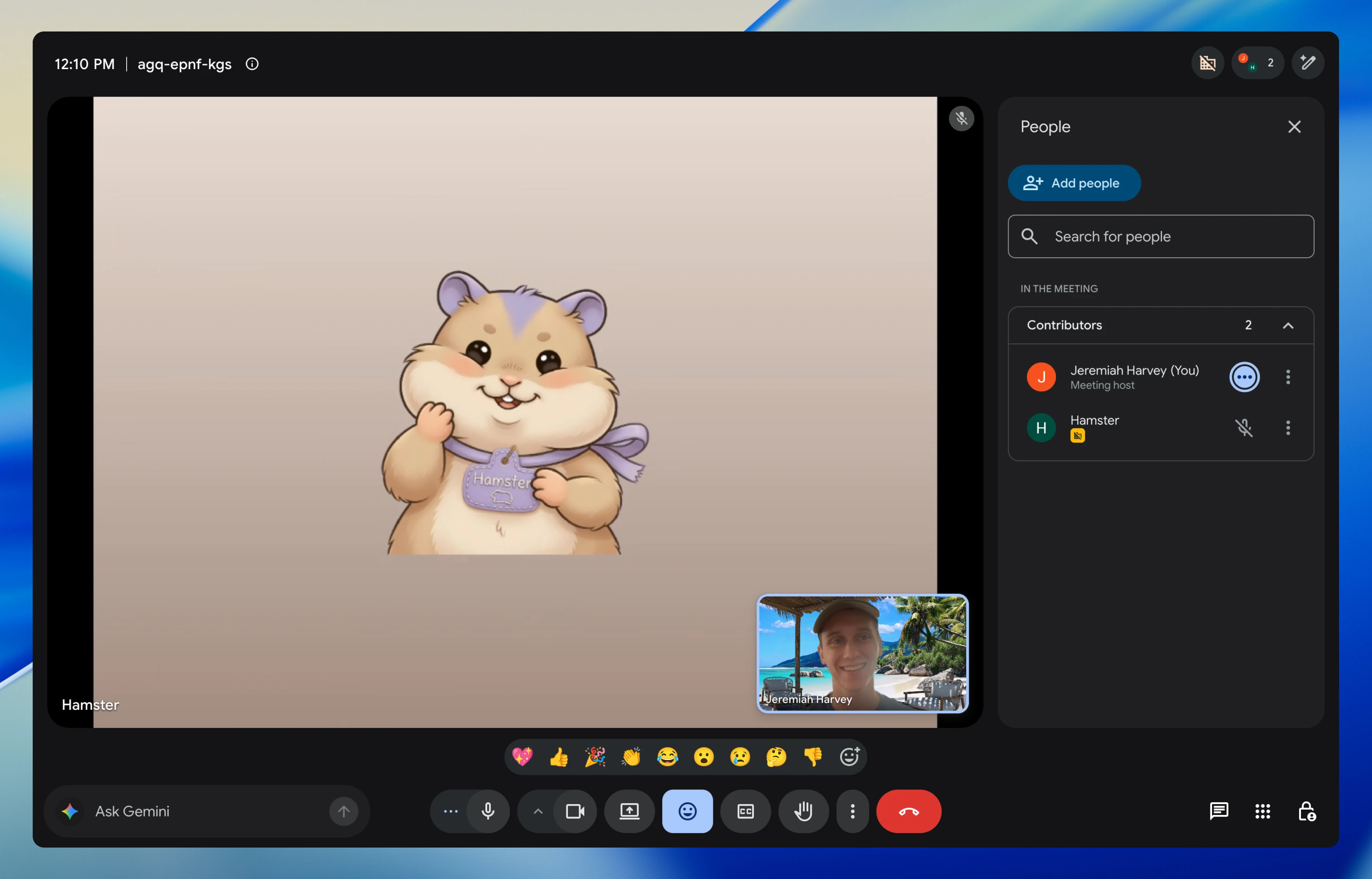
In the call, Hamster stays quiet until someone says its name out loud, such as "Hey Hamster, what did we decide about pricing?" It answers in voice and can draw on your workspace, the same way it does in a voice session. The name and voice come from Team Hamster.
After the call, the transcript and a summary land in a new chat titled after what was discussed, with the people who were on the call added as participants. The chat is open to your whole workspace, and Hamster can find it later when you ask, for example "I just had a call with Max — what did we agree?"
Related
- Hamster Chat — Continue the same work in text.
- Team Hamster — Choose the workspace AI's voice and identity.