How the AI responds
How Hamster Studio's AI agent reads your messages, runs tools, and replies — with long answers automatically moving into their own thread so the main chat stays clean.
Overview
Every message you send in a conversation is handled by an AI agent that understands your workspace — Briefs, Initiatives, Tasks, documents, skills, Methods, and connected tools. The agent reads your message, decides what to do, and either writes a response, takes an action (creating a Brief, generating a Plan, searching context), or asks follow-up questions. Responses stream in as the agent writes so you see the answer forming, not just a Result that appears all at once.
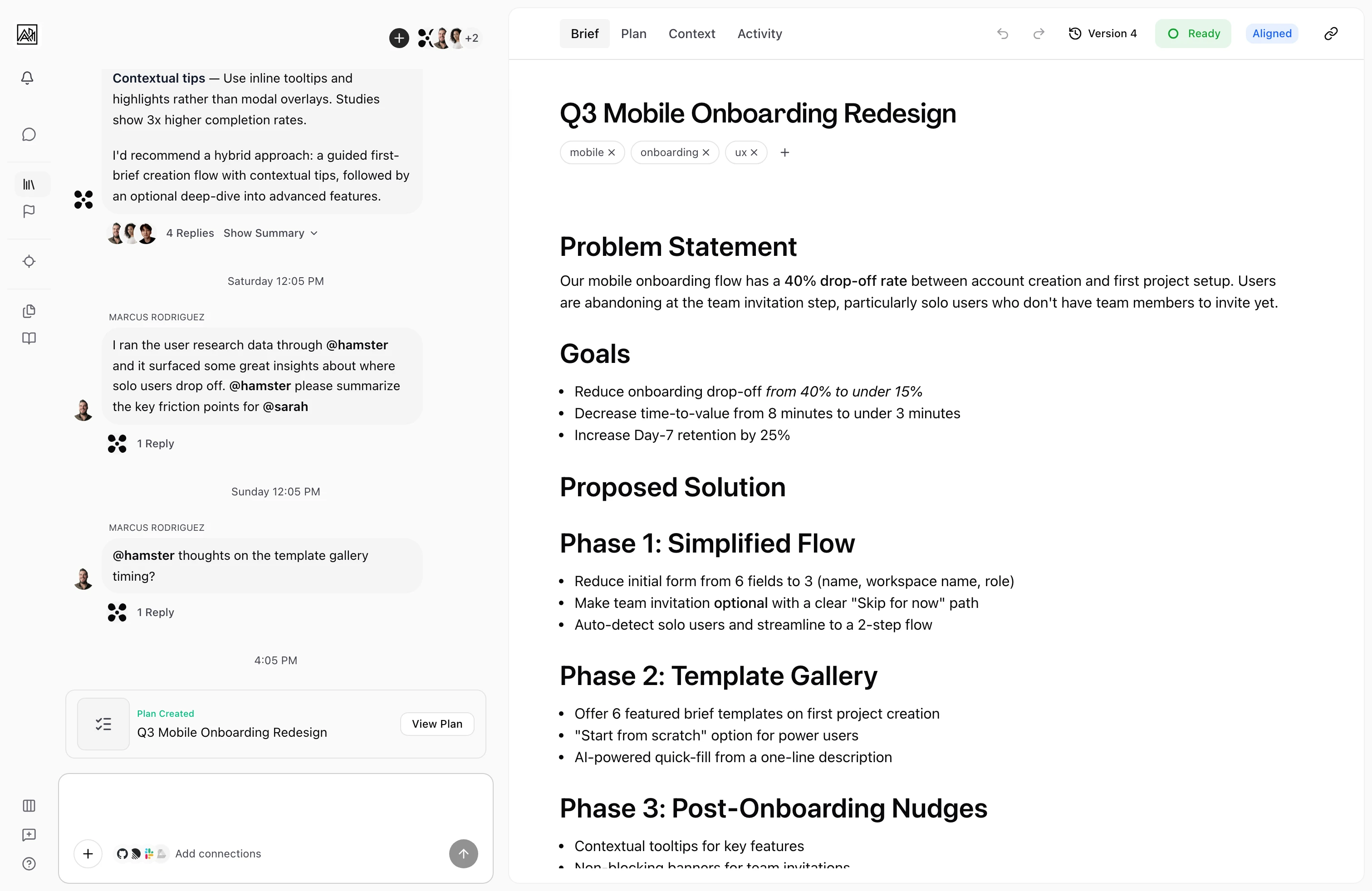
When the agent's reply gets long, or when it's drafting something substantial like a Brief or a Plan, the conversation moves into a child thread automatically. The parent chat stays focused; the detail lives in its own space with a clickable card pointing to it.
Hamster's chat is the entry point to the product. On a first run, it turns an outcome into a confirmed Goal, shapes the Initiative, and drafts the first Brief.

How It Works
-
You send a message — Your message appears in the thread immediately. The agent receives it along with recent conversation history and any relevant workspace context.
-
The agent reasons — Before responding, the agent works through the problem. A collapsible "Thinking" section appears in the thread as it reasons, so you can follow along in real time — you don't have to wait for the full response to start reading its logic. This section closes automatically once the final response begins, or if no turn is active.
-
Tools run if needed — Depending on what you asked, the agent may run tool calls — searching context, creating a Brief, filtering Briefs by tag, casting alignment, fetching from a connected app. Each runs as a compact status indicator showing whether it's in progress, complete, or waiting for review.
Tool calls and interim work fold beneath Worked for… when the response lands, so the final answer stays readable and the working history remains available.
-
The response streams in — The reply appears at an adaptive, bounded visual pace with fast tail drain, preserving readability while keeping interactions snappy. Markdown — headings, bullets, bold, code — is applied as the text arrives. If model inference stalls for 10 seconds, a "Still working…" notice appears; at 20 seconds, the agent automatically retries with a fallback model and shows "Taking longer than usual — retrying…" until output resumes.
-
Long answers move to a child thread — If the response is detailed, the agent relocates it into a child thread automatically and posts a card in the parent so you can jump in. Plan generation and Brief drafting always run in their own child threads.
-
You review and continue — When streaming ends, the response is complete. If the agent edited a document, accept/reject buttons appear so you can review the diff before applying. Otherwise, you can reply directly.
The first-run response
Hamster keeps Goal capture inside the conversation:
- It asks, “What are you trying to achieve?”
- It reflects the answer as one outcome-oriented statement without asking for a framework, Metric, or hierarchy.
- It confirms, “That sounds like a great goal — I’ve captured it.”
- It immediately shapes the Initiative, then drafts the first Brief.
In workspaces that support Goal creation from chat, the Goal persists in the workspace. Otherwise, Hamster carries the confirmed Goal in the conversation and continues into the Initiative and Brief without blocking.
Follow-Ups and Background Work
A chat is one thread from the first question to the finished work. You can keep talking while Hamster replies, hand it a longer job, and get the result back in the same conversation.
Send a follow-up any time
You never have to wait for a reply before sending the next message, and the send button doesn't turn into a stop button. If Hamster is still preparing its reply when your follow-up arrives, it works your follow-up into that reply. It keeps the work it has already done, and the answer covers both messages. Send several messages in a row and Hamster answers them together. A teammate's message in the same chat gets its own answer.
Hand off a longer job
Ask Hamster to do something in the background, such as "check whether the Slack integration work is on track and let me know." Hamster starts a work thread for the job, posts one line with a link to it, and keeps answering you in the conversation while the work runs.
When the job finishes, Hamster posts the result in the same conversation. A line above the result shows the time and Update, or the routine's name when a Routine did the work. Click that line to open the work thread and see the work behind the result. When one result combines several jobs, choose the thread you want from the list. If a job fails, Hamster tells you.
The Work button in the chat header lists every work thread this conversation started, with who asked for it and whether it's still running. Select one to open it.
Check in, redirect, or stop the work
Ask about background work in the same conversation that started it:
- Check in — Ask how it's going. Hamster reports the job's status and its latest progress.
- Redirect — Tell Hamster what to change. It passes your message to the work thread, which picks up the new direction right away, and shows a Messaged line in your conversation.
- Stop — Ask Hamster to stop. The job stops what it's doing right away and stays paused. Give it new direction later and it picks back up.
You steer and stop background work by asking in chat. There's no separate stop button for it. A conversation can only steer the work it started.
Routines that report back to the chat
Ask Hamster to repeat a job on a schedule, or whenever something changes in your workspace, such as a Brief, Plan, Task, or delivery. The Routine it sets up belongs to that conversation, and each run posts its result there under the routine's name. A run with nothing new to report stays quiet. Routines set up in chat can't start from code events such as a pull request.
In a chat you share with teammates, Hamster suggests the routine for you to review instead of creating it directly.
Routines set up in a chat don't appear in the Routines list under Methods > Routines. Select Routines in the chat header to see each one and what starts it. From there you can pause or delete a routine, or reset it if it came from a library routine. Archiving the chat pauses its routines.
Auto-Threading
Detailed answers, Brief drafts, and Plan generation move out of the main chat into child threads automatically. The parent thread keeps a card linking to the child so the conversation stays followable.
The rules:
- Long answers (multi-paragraph explanations, design or implementation Plans, migrations) move on their own.
- Brief and Blueprint creation always run in a dedicated child thread, with the Brief card landing back in the parent on the agent's first reply.
- Plan generation gets its own child thread when triggered from chat. The plan-generation card streams progress live and stays in sync if you navigate away and come back.
- Pending tool calls in a child thread show an amber dot on the card in the parent so you can spot work that needs attention.
- Delivery child threads don't get the share-summary banner. Ordinary branches do, however many people are in them.
Reasoning Through Your Workspace
The agent doesn't rely on isolated keyword matches. It traverses the relationships between Briefs, Initiatives, Tasks, documents, and conversations to assemble higher-signal answers. It's also team-aware and time-aware — it can prioritise context based on who's involved and what changed recently, so responses stay grounded in your team's current reality.
Because it follows relationships rather than matching keywords, you can ask "why did we decide this" and the agent walks the Context Graph back to the Brief or message where the call was actually made.
Ask a vague, high-level question and the agent pulls the relevant context behind the scenes, answering with what's landed, what's in flight, and what needs attention.
Diagrams
Ask Hamster for a Mermaid diagram in chat or a document, then expand it to inspect how the parts relate.
Working with Files and URLs
- Drop a
.figfile — Figma files are accepted as a chat upload. The agent extracts the design context (pages, frames, text, components) and uses it as grounding for whatever you ask next. - Paste a Figma URL — public Figma files work without auth; private ones use the Figma OAuth connection. Either way, the agent renders the file as a thumbnail with structured content the agent can reference.
- Drop a PDF or markdown file — both are extracted and indexed for the agent.
- Paste any URL — most pages are scraped and summarised so the agent can use them as context.
- Drop a ZIP archive — The upload keeps its folder structure so related files remain organised.
- Inspect media — Select media Hamster shows from documentation to enlarge it.
Key Capabilities
- Streaming responses: Replies appear progressively, so you can start reading before the agent has finished writing. Incomplete markdown renders gracefully while streaming.
- Durable resume: If a chat turn is interrupted by a service hiccup or network issue, the next message resumes from the last completed step instead of restarting from scratch. Tool calls that already ran aren't repeated.
- Auto-threading: Long answers, Brief drafts, and Plan generation move to child threads automatically with a clickable card in the parent.
- Live reasoning: A collapsible "Thinking" section streams the agent's reasoning in real time — visible in regular chat conversations as well as Brief, Blueprint, and Plan generation. On terminal decisions, the thinking indicator clears automatically.
- Follow-up questions: When the agent needs more information, it can respond with a structured set of questions in the input area, stepping you through each one. These persist across page refreshes — your in-progress answers don't disappear if you reload.
- Mention
@hamsterdirectly: Address the AI in any thread by mentioning@hamster. Mixed mentions like@hamster do this, @bob what do you think?always trigger Hamster — Hamster never gets filtered out by other mentions in the same message. - Sticky context: After you mention
@hamster, follow-ups stay routed to Hamster without re-mentioning. After@bob, follow-ups stay with Bob until Hamster is explicitly re-mentioned. - Hamster has its own avatar: The AI shows up as a distinct participant in thread views, with its own avatar in headers, reply indicators, tool calls, and annotation messages — so it's always clear who said what.
- Plan generation from any chat: Trigger Plan generation from the main chat or a Brief chat. The plan-gen card lives in whichever thread you started it from, and reaches a terminal state even if you navigate away mid-flight.
- Goal cards in chat: When you create a goal, a deep-linked "Goal created" card appears in chat so you can jump straight to it. Framework scaffold cards don't appear; only created goals show a card.
- Next-step action chips: Suggestions arrive as 2–3 self-dismissing action chips that either submit a prompt or resolve a reference (to Connections, Participants, or a detail page).
- Stuck-chat recovery: If a service hiccup or agent stall leaves a chat appearing to hang, an inactivity watchdog with a 20-second fallback timeout will trigger recovery, resume from the last completed step, and prevent duplicate side effects through built-in idempotency protection. The next message completes the recovery automatically. You don't get stuck on "Message is already being processed" anymore.
- Reviewer-safe: Teammates with the Reviewer role can ask questions and read replies, but write actions (creating Briefs, editing documents) are blocked at the agent level — not just hidden in the UI.
- Live voice: Start a voice session from the waveform control in an empty chat composer. See Voice mode.
Tips
- The "Thinking" section streams live in every conversation — you don't have to wait for the full response to start following the agent's reasoning. On terminal turns and when no AI turn is active, the indicator automatically clears. If you want to understand a specific decision, expand it and read the steps as they arrive.
- When the agent produces a document change, click "View Pending Changes" before accepting or rejecting to see a side-by-side diff.
- Drop the customer-call recording, the design file, and the linked context before asking for a brief. The agent uses everything attached to ground its work, so the Brief comes back in the right shape on the first try.
- If the agent keeps drifting on the last 30% of an answer, it's usually a context problem — paste in the strategy doc, the customer transcript, or whatever else is missing, and the next loop will converge.
Related
- Thread Messaging — The full message experience, including file attachments and URL previews
- Thread Branches — Working in focused sub-conversations
- Mentions and Notifications
- AI Features
- Skills and Methods
- Memory — The facts and preferences Hamster brings into every chat
- Routines — Recurring work that reports back to a conversation